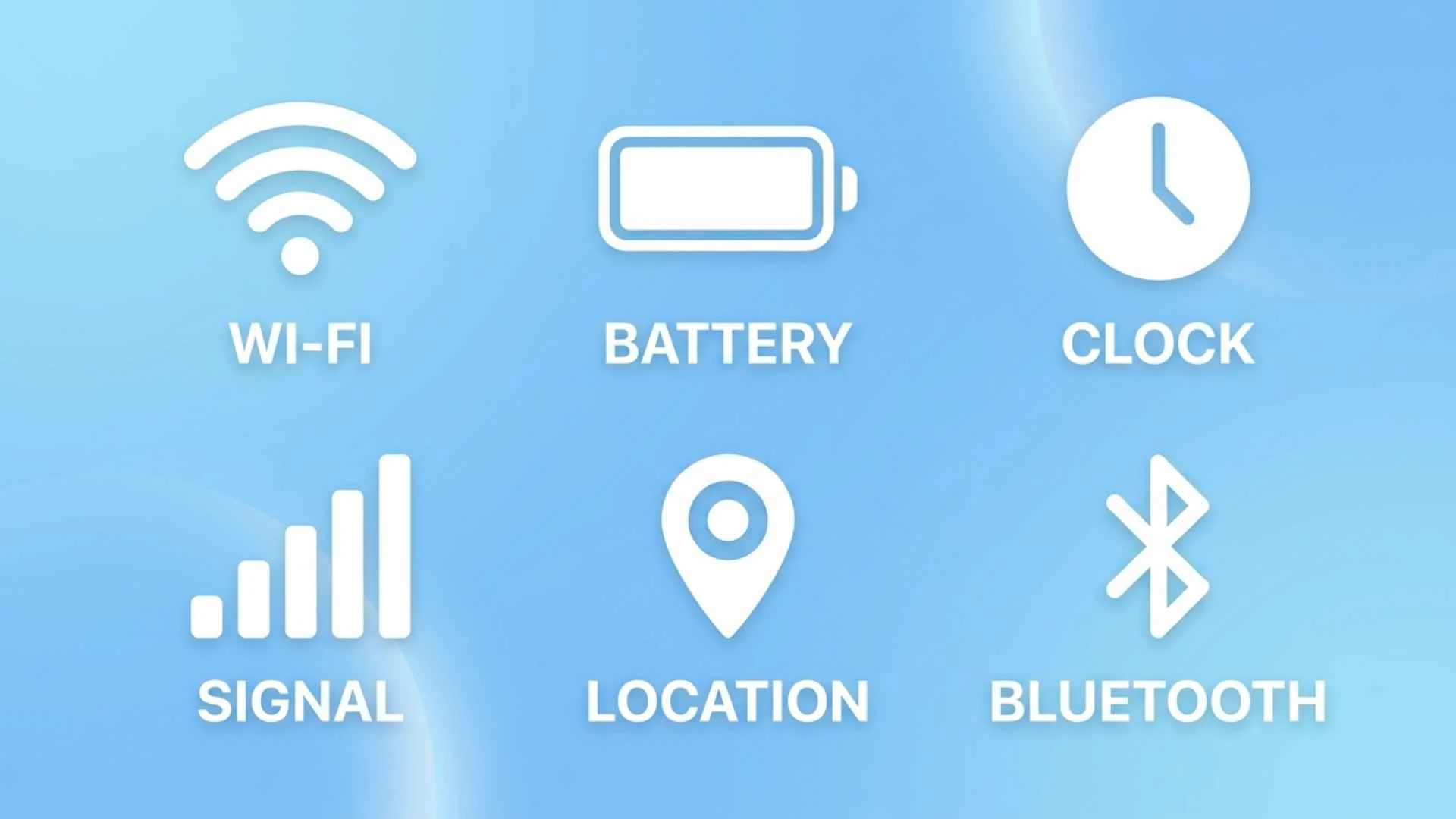
The iPhone symbols on top of the screen help you understand what your device is doing at a glance. These small icons appear in the status bar and can show your cellular signal strength, Wi-Fi connection, battery level, Bluetooth status, Focus mode, and other important features. If you notice an unfamiliar symbol next to the time or near the battery indicator, knowing its meaning can help you understand your iPhone’s current status.
Some iPhone status bar symbols indicate normal activity, while others may alert you to a connection issue or an enabled setting. For example, the airplane icon means Airplane Mode is on, the crescent moon can indicate an active Focus mode, and the battery icon shows your remaining charge. Other symbols may appear when your iPhone uses location services, connects to a personal hotspot, or activates features such as screen recording.
In this guide, you will learn the meanings of common iPhone symbols at the top of the screen, including icons on the left and right sides of the status bar. You will also discover why certain symbols appear, how to turn specific features on or off, and what to do when an unfamiliar icon remains visible. Whether you use an older iPhone or a newer model, this guide will help you recognize these symbols and troubleshoot common issues.
What Are the Symbols at the Top of an iPhone Screen?
The symbols at the top of an iPhone screen are commonly called status bar icons. They communicate information about your device’s current state, including cellular reception, Wi-Fi connectivity, battery power, and certain active system features.
The exact icons you see depend on your iPhone model, iOS version, network provider, settings, and current activity. iPhones with Face ID generally display status information around the top corners of the screen. Models with a Home button have a different layout, while newer models with Dynamic Island can display ongoing activities in a separate interactive area.
Some icons indicate that a feature is enabled, while others show that an app is using a particular resource. Recognizing the difference helps you understand whether an icon is simply informational or requires attention.
Quick Guide to iPhone Symbols on Top of Screen
Use this table to identify common iPhone symbols and understand what to do when they appear.
| Symbol or indicator | Meaning | What you should do |
| Cellular bars | Mobile signal strength | Move to an area with better reception if needed |
| Wi-Fi curves | Wi-Fi connection | Check your network if the internet is not working |
| Battery icon | Remaining battery charge | Charge your iPhone when necessary |
| Yellow battery | Low Power Mode is enabled | Turn it off if you no longer need it |
| 5G, LTE, or 4G | Cellular network technology | Check coverage if speeds are slow |
| Airplane icon | Airplane Mode is enabled | Turn it off to restore normal cellular service |
| Location arrow | Location-related activity | Review Location Services permissions |
| Green privacy dot | Camera use, or camera and microphone together | Check which app is using the camera |
| Orange privacy dot | Microphone use without simultaneous camera use | Review microphone permissions if unexpected |
| Crescent moon | Do Not Disturb or a related Focus mode | Check Focus settings if notifications are silenced |
| VPN indicator | An active VPN connection, when displayed | Review your VPN settings |
| SOS or SOS only | Normal cellular service is unavailable, but emergency service may be possible | Check coverage and your carrier |
| Alarm icon | An alarm is set, on supported layouts | Check the Clock app |
| Lock icon | Device or feature status, depending on its location | Identify the exact icon before changing settings |
Not every symbol appears in the status bar on every iPhone. Some are visible only in Control Center, inside an app, or in Dynamic Island.
Common iPhone Status Bar Icons and Their Meanings
1. Cellular Signal Bars
The cellular signal indicator shows how well your iPhone receives a signal from your mobile carrier. More filled bars generally indicate stronger reception, while fewer bars suggest a weaker signal.
When the signal is weak, you may experience dropped calls, slow mobile internet, or difficulty sending messages. If your iPhone displays No Service or Searching, it may be unable to establish a normal cellular connection.
To improve reception, move outdoors or closer to a window, check your carrier’s coverage, or toggle Airplane Mode off and on. If the issue continues in different locations, contact your carrier.
2. Wi-Fi Symbol
The Wi-Fi symbol looks like curved lines above a small point. It indicates that your iPhone is connected to a Wi-Fi network.
A Wi-Fi connection can help you browse the internet, stream videos, download apps, and reduce mobile data usage. However, the icon does not guarantee that the Wi-Fi network itself has a working internet connection.
To troubleshoot Wi-Fi, open Settings, select Wi-Fi, and check your connected network. If necessary, restart your router or reconnect to the network.
3. Battery Icon and Battery Percentage
The battery symbol displays your iPhone’s remaining charge. The filled portion generally decreases as the battery runs down.
On supported iPhones, you can enable a numerical battery percentage by opening Settings, selecting Battery, and turning on Battery Percentage.
A low battery can affect how long you can continue using your device, so connect your iPhone to a charger when the charge becomes low.
4. Yellow Battery Symbol
A yellow battery icon generally means Low Power Mode is enabled. This feature reduces certain background activities and system functions to help extend battery life.
To disable it, open Settings, tap Battery, and turn off Low Power Mode. Depending on your iPhone and iOS version, the option may be presented differently.
A yellow battery does not automatically mean your battery is damaged. It usually indicates a power-saving setting.
5. 5G, LTE, 4G, and 3G Symbols
These indicators identify the cellular network technology available to your iPhone.
- 5G: A fifth-generation cellular network connection.
- LTE: A connection using LTE technology.
- 4G: A fourth-generation network indicator used by some carriers.
- 3G: A third-generation connection, where still supported.
The displayed label depends on your carrier, region, device, plan, and cellular settings. Seeing LTE instead of 5G does not necessarily indicate a fault. Your location may not have 5G coverage, or your current settings may favor another connection.
6. Airplane Mode Symbol
The airplane icon means Airplane Mode is enabled. This mode disables cellular connections and can also affect other wireless connections, although Wi-Fi and Bluetooth can be turned back on separately.
To turn it off, open Control Center and tap the airplane icon. On most Face ID iPhones, swipe down from the upper-right corner. On Home button models, swipe up from the bottom edge.
If you cannot make regular calls after enabling Airplane Mode, check that it has been turned off and that your cellular service is available.
7. Location Services Arrow
The location-related arrow indicates activity associated with Location Services. Depending on the indicator and your iOS settings, it can show that an app or system service has accessed your location.
Location access is used by navigation apps, weather services, maps, and other location-based features.
To review permissions, open Settings, select Privacy & Security, and tap Location Services. You can adjust individual apps’ access based on the options available for each app.
An unfamiliar location indicator is not proof that someone is tracking you maliciously. Check the app responsible before changing your settings.
8. VPN Symbol
A VPN indicator, when displayed, relates to a virtual private network connection. A VPN can route internet traffic through a remote server and may be used for privacy, workplace access, or secure connections.
To review your VPN, open Settings and look for VPN or VPN & Device Management. Check any active connection, installed VPN apps, and configuration profiles.
If you do not recognize a VPN, investigate its source before removing it. A VPN may have been installed by your employer, school, or a security application.
iPhone Privacy Symbols: Green Dot, Orange Dot, and Other Indicators
9. Green Dot at the Top of the Screen
The green privacy indicator appears when an app is using your iPhone’s camera or using the camera and microphone together, on supported iOS versions.
For example, it may appear when you take a photograph, record a video, or participate in a video call.
If the green dot appears unexpectedly, open Control Center to review which app recently used the camera. You can then open Settings, select Privacy & Security, and tap Camera to review app permissions.
10. Orange Dot at the Top of the Screen
The orange dot means an app is using your microphone without using the camera at the same time.
This is normal during activities such as recording audio, sending voice messages, or making audio calls.
If you do not expect microphone activity, check Control Center and review microphone permissions under Settings > Privacy & Security > Microphone.
The orange dot is a privacy feature designed to make microphone use more visible. It does not, by itself, mean your iPhone has been hacked.
11. Crescent Moon or Focus Symbol
A crescent moon commonly indicates that Do Not Disturb is active. Other Focus modes may display different icons depending on the selected mode.
Focus helps reduce interruptions by silencing or filtering notifications from selected people and apps.
To turn it off, open Control Center, tap Focus, and select the active mode. If it turns on again automatically, check the Focus schedule and automation settings.
12. Blue or Colored Status Indicators
A colored status area may appear when your iPhone is using a feature that needs to remain visible. Depending on the iPhone model and iOS version, this may relate to an active call, screen mirroring, Personal Hotspot, or another ongoing activity.
Do not identify a symbol by color alone. Look at its shape, position, and accompanying message, then check Control Center to identify the active feature.
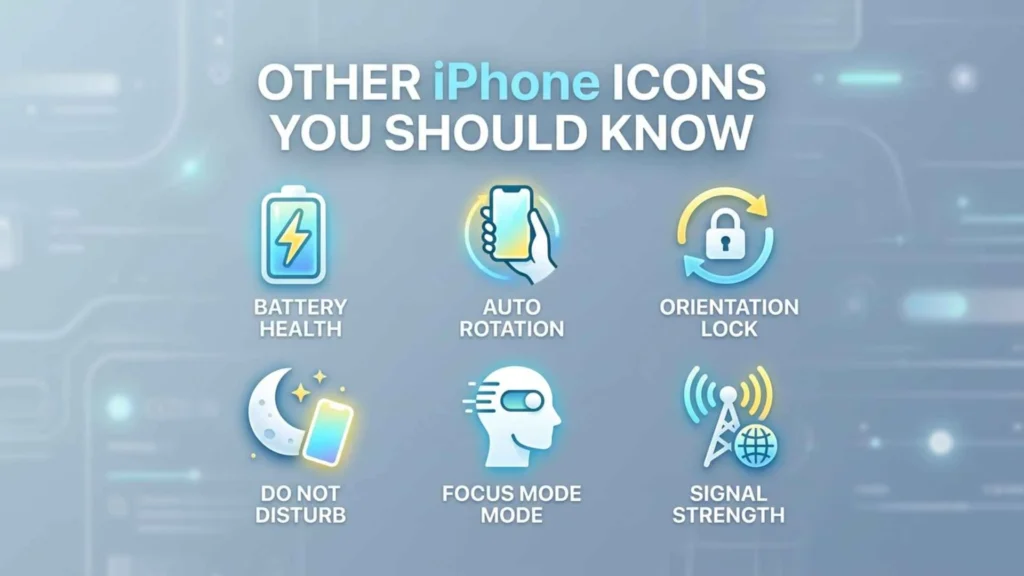
Other iPhone Icons You Should Know
13. Alarm Clock Symbol
An alarm indicator may appear in the status area on supported models and software versions. It generally relates to an alarm that has been set.
To check your alarms, open the Clock app and select Alarms. Confirm the time and ensure the alarm is enabled.
The absence of an alarm icon does not necessarily mean an alarm is disabled, because icon visibility varies by model and iOS version.
14. Bluetooth and Connected Accessories
Bluetooth lets your iPhone communicate with compatible wireless headphones, speakers, vehicles, and other accessories.
The Bluetooth status is commonly checked in Settings or Control Center rather than through a permanent status bar icon.
If your headphones or another accessory will not connect, open Settings > Bluetooth and confirm that Bluetooth is enabled. Then check whether the accessory is charged, compatible, and properly paired.
15. Personal Hotspot
Personal Hotspot allows your iPhone to share its cellular internet connection with another device. When hotspot activity is ongoing, iOS may display an associated indicator or show the activity in Control Center.
To manage this feature, open Settings and select Personal Hotspot, or find it under Cellular on some iOS versions.
If you no longer want to share your connection, turn off Allow Others to Join. You should also check hotspot activity if your battery or mobile data is being used faster than expected.
16. Charging and Accessory Battery Indicators
Your iPhone displays charging information through its battery icon when connected to power. The precise appearance depends on the charging state and iOS version.
Some connected Bluetooth accessories, such as supported headphones, can also display their battery levels in widgets or other system interfaces.
If your iPhone does not appear to charge, check the cable, power adapter, charging port, and power source. A charging icon alone does not always mean that the battery is receiving power successfully.
17. SOS or SOS Only
SOS or SOS only generally indicates that your iPhone cannot connect to your regular carrier for normal cellular service. Emergency calls may still be available through supported networks.
Try moving to an area with better reception, checking your SIM or eSIM status, and contacting your carrier if the message persists.
Emergency connectivity varies by location and network availability. Do not assume that the SOS indicator guarantees emergency service will be available everywhere.
18. Screen Recording, Active Calls, and Dynamic Island
Some activities appear as colored status areas, temporary indicators, or live information in Dynamic Island rather than as traditional icons.
Examples include screen recording, phone calls, navigation, timers, and supported live activities.
If an activity indicator remains visible, open the relevant app or Control Center to check whether the activity is still running. Stop it if you no longer need it.
Dynamic Island is not the same as the status bar, although both can display useful information near the top of the screen.
How to Remove Unwanted Symbols From the Top of Your iPhone
You cannot hide every status icon individually, because many indicators communicate essential device information. However, you can remove some icons by turning off the feature that produces them.
Step 1: Identify the Symbol
Look at its shape, color, and location. Compare it with the quick-reference table above rather than guessing from color alone.
Step 2: Open Control Center
Swipe down from the upper-right corner on most Face ID models, or swipe up from the bottom on older Home button models. Check for active features such as Focus, Airplane Mode, screen recording, or Personal Hotspot.
Step 3: Review the Relevant Settings
Open Settings and check the appropriate section, such as Battery, Cellular, Wi-Fi, Focus, Privacy & Security, or VPN.
Step 4: Stop the Associated Activity
If the icon relates to a call, recording, navigation session, or other activity, stop that activity when you no longer need it.
Step 5: Restart or Update Your iPhone
If an indicator appears stuck after the relevant activity ends, restart your iPhone. You can also check Settings > General > Software Update for available updates.
Avoid erasing your iPhone or resetting all settings just because an icon is unfamiliar. Identify the symbol first and use the least disruptive solution.
Why Do iPhone Symbols Look Different on Different Models?
The position and appearance of status icons vary by iPhone model and iOS version.
Face ID models use a different display layout from Home button models. Devices with Dynamic Island can also display ongoing activities in an interactive area near the top of the screen.
Carrier support, regional network availability, privacy settings, and connected accessories can affect which indicators appear. Some icons are permanent while a feature is active, and others appear only temporarily.
If an icon in this guide looks different from the one on your device, compare its location and function with Apple’s official documentation for your iPhone and software version.
Frequently Asked Questions
What are the symbols at the top of my iPhone screen?
They are status indicators that show information about your network, battery, privacy, and active system features. Their appearance depends on your device and iOS version.
What does the little arrow at the top of my iPhone mean?
It commonly relates to Location Services. Check Settings > Privacy & Security > Location Services to review which apps can access your location.
What does the green dot mean on an iPhone?
The green dot indicates camera use, or camera and microphone use together, on supported iOS versions.
What does the orange dot mean on an iPhone?
The orange dot indicates that an app is using your microphone without using the camera at the same time.
Why is there a moon symbol on my iPhone?
The crescent moon commonly means Do Not Disturb is active. Open Control Center and check Focus settings if you want to receive notifications normally.
Why is my iPhone battery icon yellow?
A yellow battery icon generally means Low Power Mode is enabled. You can manage this feature in Settings > Battery.
Does SOS mean my iPhone is broken?
No. SOS or SOS only generally means normal cellular service is unavailable. Emergency calls may still be possible through supported networks.
Can I remove all the icons from my iPhone status bar?
No. Many icons cannot be hidden individually because they communicate important device information. Some disappear when you disable the associated feature.
Do the green and orange dots mean my iPhone is hacked?
No. These indicators usually represent normal camera or microphone activity. If the activity is unexpected, review the app responsible and its privacy permissions.
Where can I find the official meanings of iPhone symbols?
Apple provides an official guide to status icons and symbols. You can consult it here:
Final Thoughts
Understanding iPhone symbols on top of screen makes it easier to identify your device’s current status, manage privacy, and troubleshoot everyday issues. Cellular bars, Wi-Fi, battery indicators, privacy dots, and Focus symbols each provide useful information about how your iPhone is operating.
When an unfamiliar icon appears, identify its shape and location, check Control Center or Settings, and confirm its meaning before changing anything. Remember that some indicators vary by iPhone model and iOS version, so Apple’s official documentation is the best reference for exact identification.
With a clear understanding of these symbols, you can use your iPhone more confidently and respond appropriately when a status indicator appears.

I am Marcus Lee, a cultural researcher and slang aficionado. I study the roots of informal language and how communities create meaning through words. My books “Slang Origins: A Journey Through Words” and “Words That Move Us: Slang Across Generations” focus on the history and psychology of slang. I enjoy guiding readers to understand not just the words, but the stories and attitudes they carry, so you can truly connect with language in daily life.
 Lisa Reynolds
 John Carter